Sign in to save 4K wallpapers, collect daily Picoins, and access your profile.
Loading Blog...
How to Change Wallpaper on Mac (Step-by-Step Guide) | Picmaze
Blog
How to Change Wallpaper on Mac (Step-by-Step Guide)
By Picmaze Team/Mar 12, 2026/7 min read/79 views
How to Change the Wallpaper on Your Mac (Full Step-by-Step Guide)
Beginning
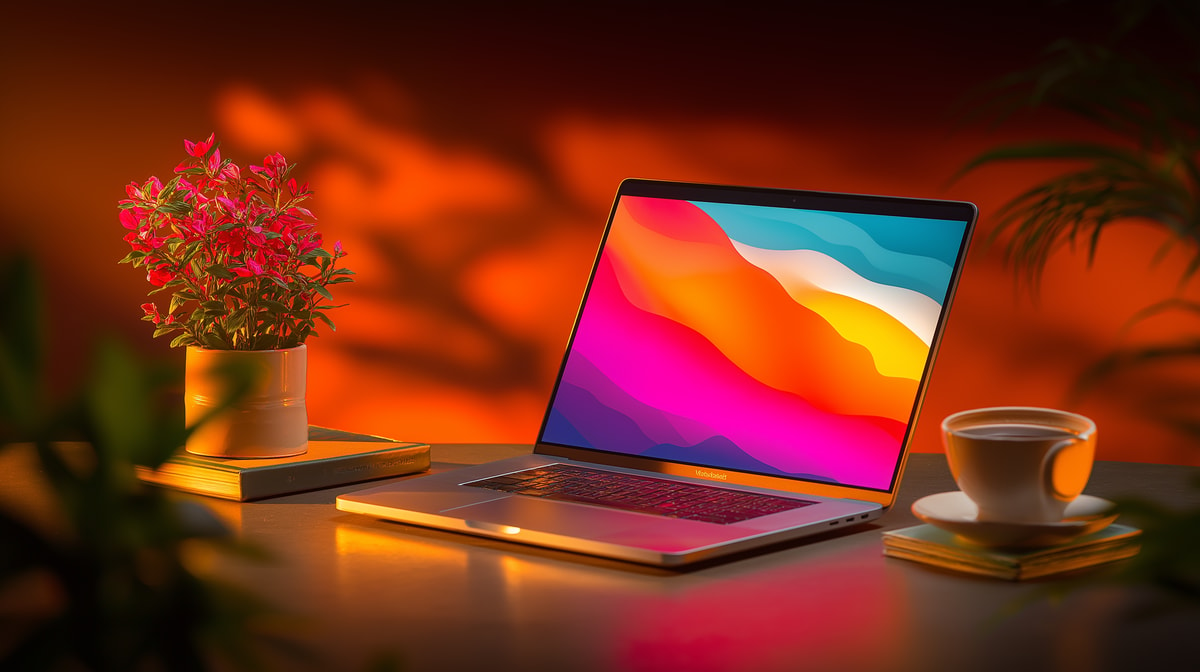
One of the easiest ways to make your office feel more personal and inspiring is to customize your computer. Changing the desktop background is one of the most common ways to customize your computer. If you have an Apple MacBook or iMac, learning how to change the wallpaper on your Mac can make your desktop experience better right away.
There are many ways to change your wallpaper in macOS. You can use wallpapers that come with your device, your own photos, dynamic wallpapers that change over time, or even images that change every time you turn on your device. The process is easy, but a lot of people don't know about all the options that macOS has.
This guide will show you everything you need to know, whether you're new to Macs or just want to change the look of your desktop. By the end of this tutorial, you will know how to set, change, and improve your Mac wallpaper in a number of ways.
Let's go over the simplest steps for changing the wallpaper on a Mac.
How to Change the Wallpaper on a Mac
It's helpful to know how macOS handles desktop backgrounds before you change your wallpaper.
Depending on your version of macOS, you can change your wallpaper by going to the Wallpaper or Desktop & Screen Saver settings.
There are many types of wallpapers to choose from:
• Default wallpapers for Apple\
• Colors that are solid\
• Wallpapers that change\
• Your own pictures\
• Pictures from folders
You can also do these things with macOS:
• Change wallpapers automatically\
• Use wallpapers that change throughout the day.\
• Set different backgrounds for each display
Mac desktops are very flexible and look great because they can be customized this much.
Method 1: Use System Settings to Change the Wallpaper on a Mac
This approach is the easiest and most common way to change the background on your Mac.
Instructions in Steps
1. In the top left corner of your screen, click the Apple menu.
2. Choose System Settings (or System Preferences on older versions of macOS).
3. Click on the wallpaper.
4. Look through the wallpapers that are available.
5. Choose any wallpaper you want.
The background on your Mac desktop will change right away.
Different Types of Wallpaper
You might see options like these inside the wallpaper panel:
• Desktop that changes\
• Desktop with Light and Dark\
• Wallpapers for Apple\
• Colors\
• Picturesque
Dynamic wallpapers automatically change the lighting on your desktop based on the time of day, making it look like you're really there.
Method 2: Use a picture to change the wallpaper on your Mac
macOS makes it very easy to add your own photos to your desktop to make it more personal.
How to Make a Photo Your Wallpaper
1. Open the Finder.
2. Find the picture you want.
3. Click the image with the right mouse button.
4. Click on "Set Desktop Picture."
The picture you choose will instantly become your wallpaper.
The Best Types of Images for Mac Wallpapers
To get the best picture quality, use:
• Pictures with a lot of detail\
• Wallpapers in 4K\
• Images in landscape orientation\
• Photos that fit your screen resolution
This stops wallpapers from getting blurry or stretched.
Method 3: On a Mac, drag and drop wallpaper
Drag and drop is another quick way to do it.
Steps
1. Finder will open the picture.
2. Put the picture on your desktop.
3. Click the image with the right mouse button.
4. Choose Set Desktop Picture.
This method works best if you change your wallpaper a lot.
Method 4: Use Dynamic Wallpapers on a Mac
One of the most impressive things about macOS is its dynamic wallpapers.
These wallpapers change on their own based on the time of day.
For instance:
Morning: a picture in bright daylight\
Afternoon: warm light\
Evening—colors of the sunset\
Night—dark sky at night
How to Turn on Dynamic Wallpaper
1. Go to System Settings.
2. Click on the wallpaper.
3. Pick a wallpaper that says "Dynamic."
After you choose your wallpaper, it will slowly change throughout the day.
Method 5: Change Wallpapers Automatically
You can also set macOS to automatically change the wallpaper in a folder.
Steps
1. Go to System Settings and then Wallpaper.
2. Choose a folder of pictures.
3. Allow Picture Change.
4. Pick a time period, like
• Every five minutes\
• Every half hour\
• Every hour\
• Every day
This feature keeps your desktop looking new without you having to do anything.
Why You Should Change Your Mac's Wallpaper
Changing the wallpaper on your Mac has more benefits than just making it look better.
1. Making it personal
Your desktop shows who you are and what you like.
2. More productive
A clean and calming wallpaper can help you concentrate.
3. Inspiration
Wallpapers that inspire you can help you be more creative and motivated.
4. Better experience with visuals
Wallpapers with high resolution make your screen look great.
5. Less strain on the eyes
Dark wallpapers can help your eyes feel less tired and bright.
How to Customize Your Mac Wallpaper Like a Pro
Here are some expert tips for making your Mac desktop look even better.
Use images with a lot of detail
When choosing wallpapers, make sure they match the resolution of your screen.
For example:
• MacBook Air M1: 2560×1600\
• 3024×1964 for the MacBook Pro 14-inch\
• 5120×2880 for the iMac 5K
Pixelation doesn't happen with high resolution.
Use Wallpapers That Are Simple
Simple wallpapers help you stay focused and get more done.
Set up folders for your wallpapers
Make a folder just for wallpapers so that macOS can easily change them.
At night, use dark wallpapers.
When you work late at night, dark backgrounds can help your eyes feel better.
Common Errors to Avoid
When changing wallpapers, a lot of people make little mistakes.
Using Images with Low Resolution
Such behavior makes the backgrounds blurry.
Picking Wallpapers That Are Too Bright
Your eyes can hurt from bright pictures.
Wallpapers with a lot of stuff on them
Icons are harder to see when the background is busy.
Not paying attention to dynamic wallpaper
Dynamic wallpapers make your desktop more interesting.
Frequently Asked Questions
1. How can I quickly change the wallpaper on my Mac?
The quickest way is to right-click on an image in Finder and choose "Set Desktop Picture."
2. Is it possible to use my own pictures as Mac wallpaper?
Yes. To set any photo as your wallpaper, right-click on it and choose "Set Desktop Picture."
3. Does Mac let you change your wallpaper automatically?
Yes. You can set macOS to automatically change your wallpaper at certain times.
4. What should the resolution of Mac wallpapers be?
For the best quality, wallpapers should match the resolution of your screen.
5. Do all Macs have dynamic wallpapers?
Most modern versions of macOS support dynamic wallpapers, and they work on Mac devices that are compatible.
The end
Changing the wallpaper on your Mac is a simple but powerful way to make it your own. You can change your desktop background in a number of ways on macOS. You can use built-in Apple wallpapers, your photos, or dynamic wallpapers that change throughout the day.
It only takes a few seconds, but it can make your workspace look and feel a lot better. You can make your desktop look nice and be useful at the same time by using high-resolution images, organizing wallpaper folders, and trying out dynamic wallpapers.
Your Mac desktop will always feel new and inspiring if you change your wallpapers often or use rotating backgrounds.